Many websites automatically load a mobile-optimized version on your iPhone, which is great for touch navigation but sometimes hides features, menus, or layouts available on the full desktop site. Fortunately, you can easily force the desktop version in most browsers. Here's how to do it in the most popular ones: Safari (the default), Chrome, and Firefox.
In Safari (iOS 18 and Later, Including Current Versions)
The process is straightforward and works on the latest iOS as of December 2025.
- Open Safari and navigate to the website.
- Tap the aA icon (or sometimes shown as page lines) in the address bar (it may be at the top or bottom depending on your settings).
- From the menu, select Request Desktop Website.
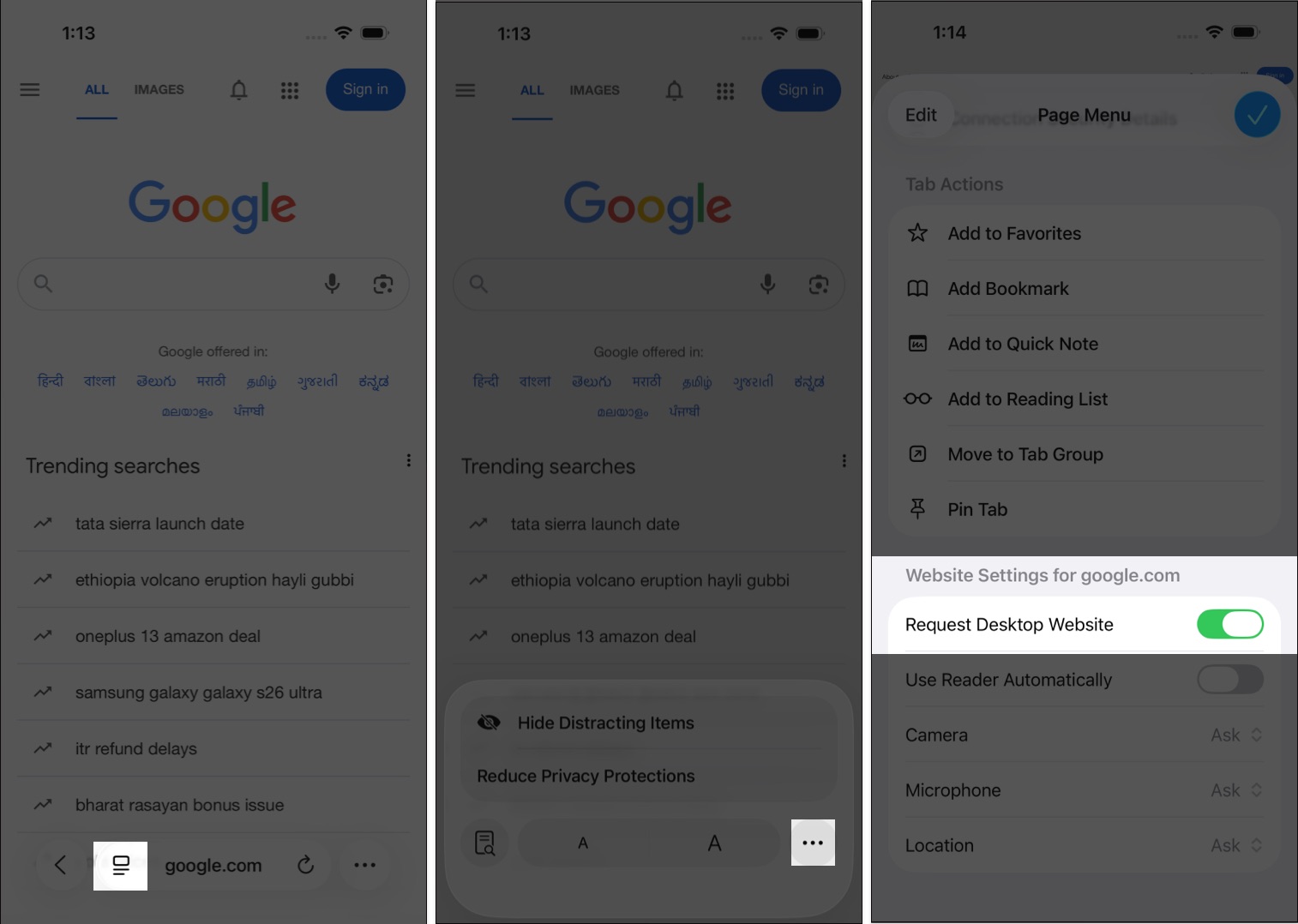
Alternative quick method: Long-press the refresh button in the address bar and select "Request Desktop Site."
Make it permanent for a site:
- Tap aA > Website Settings > Toggle on Request Desktop Website > Done.
For all sites: Go to Settings > Safari > Request Desktop Website > Turn on All Websites.
In Google Chrome
- Open Chrome and go to the site.
- Tap the three-dot menu (usually at the bottom).
- Select Request Desktop Site.
To revert: Choose Request Mobile Site from the same menu.
You can set desktop as default: Chrome Settings > Content Settings > Default site view > Desktop.
In Firefox
- Open Firefox and load the website.
- Tap the three-dot or three-line menu (position varies by settings).
- Select Request Desktop Site.
Note: Firefox may require repeating this for new pages or reloads, and there's no global default for all sites.
Tips and Notes
- Not all websites honor the request—many use responsive design that adapts to your screen size, so the "desktop" version might still look mobile-like.
- Desktop sites can be harder to navigate on a small screen (pinch to zoom!), but they're useful for accessing hidden features like full admin panels or advanced forms.
- If you're on an older iOS version (pre-13), long-press the refresh button is the main way.
This feature has been reliable since iOS 13 and remains unchanged in recent updates. Enjoy the full web on your iPhone! If you run into issues on a specific site, try clearing cookies or using a different browser.
nice info
ReplyDeletenice info
ReplyDelete