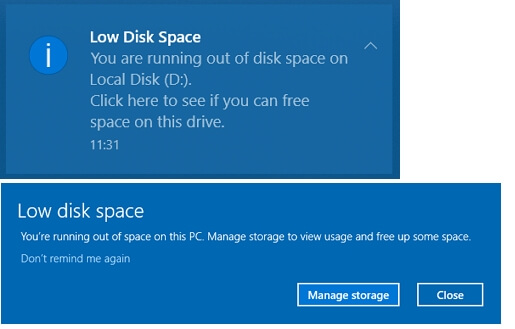
We've all been there—that dreaded notification popping up like an uninvited guest: "Your disk is almost full." Your computer slows to a crawl, updates fail, and suddenly every new photo or download feels like a luxury you can't afford. But fear not! In 2026, with drives filling faster than ever thanks to high-res media and endless apps, reclaiming space is easier than you think. This isn't your standard checklist; think of it as a digital declutter session, Marie Kondo-style for your hard drive. Let's spark joy by freeing up gigabytes without losing what matters.
Step 1: Diagnose the Culprits – What's Eating Your Space?
Before deleting anything, play detective. On Windows:
- Go to Settings > System > Storage. You'll see a breakdown of what's hogging space (apps, temporary files, documents).
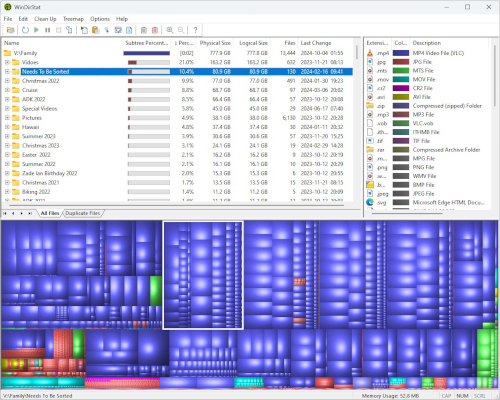
- For a visual feast, download a free tool like WinDirStat—it maps your drive like a colorful treasure hunt, showing massive folders at a glance.
On Mac:
- Click Apple menu > About This Mac > Storage > Manage. It categorizes everything from apps to photos.
Pro tip: Large files and "Other/System Data" are often the villains—old downloads, caches, or forgotten backups.
Step 2: Quick Wins – Instant Space Without the Drama
Start with low-effort, high-reward moves:
- Empty the Trash/Recycle Bin: Deleted files linger here, taking up space until you permanently evict them.
- Clear Temporary Files:
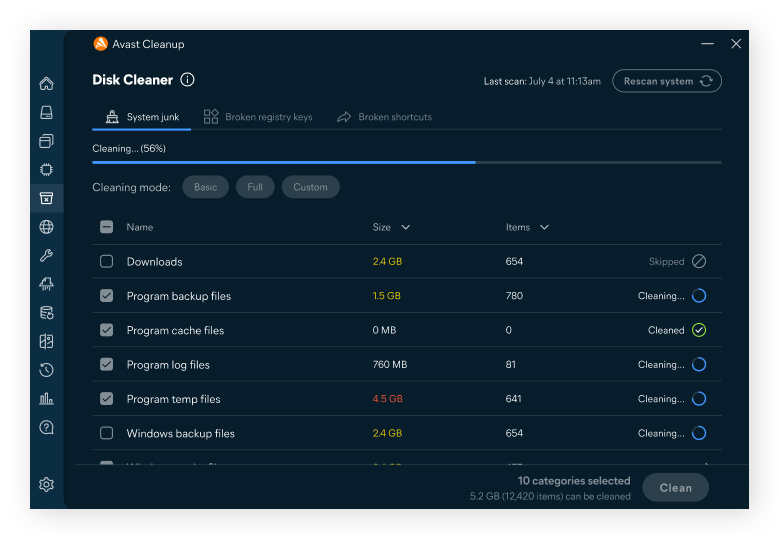
- Windows: Search for "Disk Cleanup" or enable Storage Sense (Settings > System > Storage) to auto-delete temps, old updates, and Recycle Bin items.
- Mac: Use the built-in Optimize Storage to offload rarely used files to iCloud.
- Uninstall Unused Apps: That game from 2023 you never play? Gone. On Windows, use Settings > Apps; on Mac, drag to Trash or use the Storage manager.
These alone can free 10-50GB effortlessly.
Step 3: Go Deeper – Tackle the Big Offenders
Now, target the heavy hitters:
- Media Files: Photos, videos, and music are space hogs. Upload to cloud services like Google Photos, OneDrive, or iCloud (enable "Files On-Demand" to keep placeholders locally without full files).
- Downloads Folder: The black hole of forgotten torrents and installers—sort by size and delete ruthlessly.
- Duplicates and Old Backups: Use tools like Duplicate File Finder (free versions available) or manually hunt in your libraries.
- Browser Caches: Clear them in Chrome/Firefox/Safari settings—gigabytes reclaimed, plus faster browsing.
For Windows pros: Run "Clean up system files" in Disk Cleanup to nuke old Windows updates safely.
For Mac users: Remove large attachments in Mail or old iOS backups in Finder.
Step 4: Long-Term Habits – Prevent the Full Disk Nightmare
- Enable automatic cleanup: Storage Sense on Windows or Optimize Storage on Mac.
- Move big libraries (Photos, Documents) to an external drive or cloud.
- Regularly review: Set a monthly reminder to check storage.
- Upgrade if needed: In 2026, affordable external SSDs or cloud plans make expanding painless.
By following these steps, you'll not only fix your full disk but breathe new life into your machine—faster boots, smoother multitasking, and no more panic pop-ups. Your computer will thank you, and so will your sanity. Happy decluttering! 🚀
Comments
Post a Comment
If you have any doubt, Questions and query please leave your comments