If you're running Linux in 2026—whether it's Ubuntu, Fedora, Debian, or another distro—chances are your drive is filling up faster than expected. High-res wallpapers, container images, Flatpaks, and endless logs can turn your sleek setup into a storage nightmare. But Linux gives you powerful tools to fight back, all from the terminal (or with a GUI if you prefer). This guide walks you through safe, effective cleanup steps to free gigabytes without breaking your system.
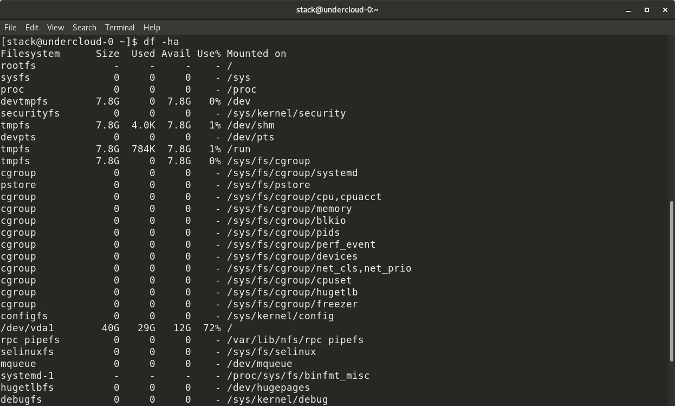
Step 1: Diagnose the Problem – Where's All the Space Going?
Start with the basics:
- Check overall disk usage: df -h (human-readable format).
- For a deeper dive: du -sh /* to see top-level directory sizes.
This tool lets you navigate and spot space hogs like a pro.
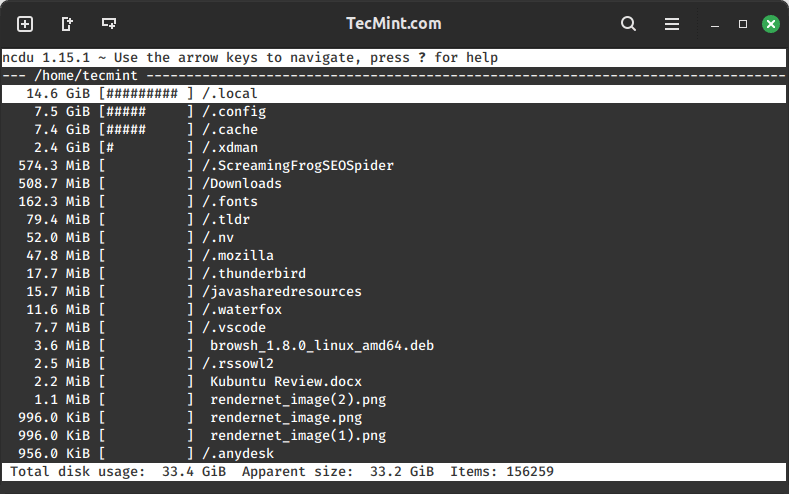
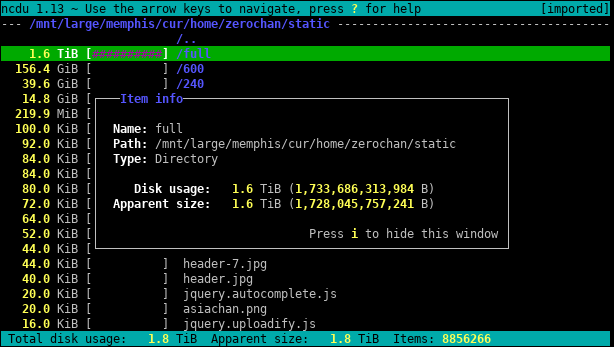
Step 2: Quick and Safe Cleanups
Target common culprits:
- Package Manager Cache:
- Debian/Ubuntu: sudo apt autoclean (remove obsolete packages) and sudo apt clean (clear all cached .deb files).
- Fedora (DNF): sudo dnf clean all.
- Orphaned Packages: sudo apt autoremove (Ubuntu/Debian) or sudo dnf autoremove (Fedora).
- System Logs (systemd journals can balloon to GBs): sudo journalctl --vacuum-size=100M (keep only the latest 100MB) Or: sudo journalctl --vacuum-time=2weeks.
![A Guide to systemd journal clean up process [With Examples]](https://www.debugpoint.com/wp-content/uploads/2021/01/journal-clean-up-example.jpg)
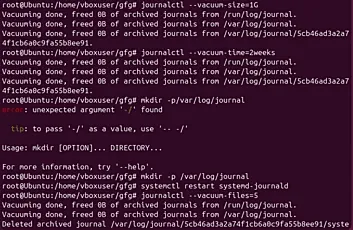
- Temporary Files: sudo rm -rf /tmp/* (safe, as /tmp clears on reboot) and sudo rm -rf /var/tmp/*.
- User Cache: Clear your home cache: rm -rf ~/.cache/* (be cautious—some apps might need to rebuild caches).

Step 3: Hunt Down Big Files and Old Kernels
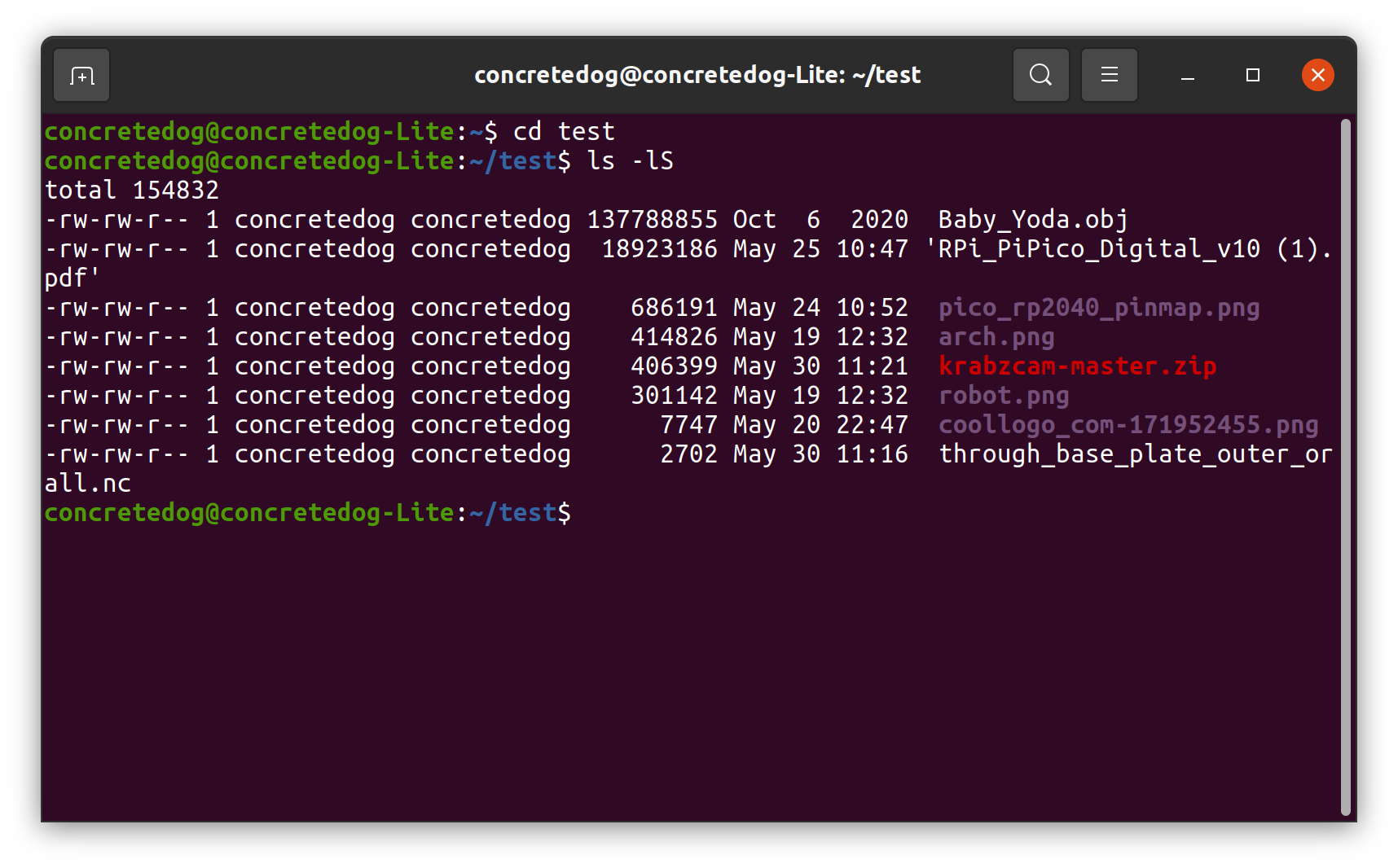
Find large files: sudo find / -type f -size +100M -exec ls -lh {} \; | sort -hr (lists files >100MB, sorted largest first).
Old kernels (common on /boot filling up): List: dpkg --list | grep linux-image (Debian/Ubuntu). Remove old ones safely: sudo apt autoremove --purge.
On Fedora, DNF handles this automatically, keeping the last few.

- Flatpaks/Snaps/Docker: These are notorious space eaters. Flatpak: flatpak uninstall --unused. Docker: docker system prune -a.
Step 4: Advanced Tools and Prevention
- BleachBit: A powerful cleaner (like CCleaner but open-source). Install via your package manager and run with caution—preview first!
- GUI options: Baobab (Disk Usage Analyzer) or Filelight for visual maps.
For long-term health:
- Limit journal size in /etc/systemd/journald.conf: Set SystemMaxUse=100M and restart the service.
- Regularly run autoremove and clean commands.
- Consider moving ~/Downloads or media to an external drive.
These steps can easily free 10-50GB or more, depending on your setup. Run df -h before and after to see the difference. Linux empowers you to keep things lean—happy cleaning! 🐧
What's your biggest space hog on Linux? Drop it in the comments!
Comments
Post a Comment
If you have any doubt, Questions and query please leave your comments