Windows SmartScreen (now often called Microsoft Defender SmartScreen) is a built-in security feature in Microsoft Windows (from Windows 8 onward) designed to protect users from phishing attacks, malware downloads, and malicious websites/apps. It acts as a reputation-based filter, checking files, applications, and web content against Microsoft's cloud-based database of known threats and safe items.
In simple terms: It warns you (or blocks) before you run potentially harmful downloads or visit dangerous sites, helping prevent drive-by infections.
How Does Windows SmartScreen Work?
- Reputation Check: When you download a file or app (e.g., .exe, .msi), SmartScreen sends details (like a hash) to Microsoft's servers. It compares against:
- Known malicious items (blacklist).
- Trusted/popular apps (whitelist based on usage data).
- Real-Time Protection: Integrated with Microsoft Edge, File Explorer, and Windows Store apps.
- Zones Integration: Works alongside Mark-of-the-Web (MotW) – files marked as from the internet trigger stricter checks.
- Cloud-Powered: Uses machine learning and crowd-sourced data for quick updates on new threats.
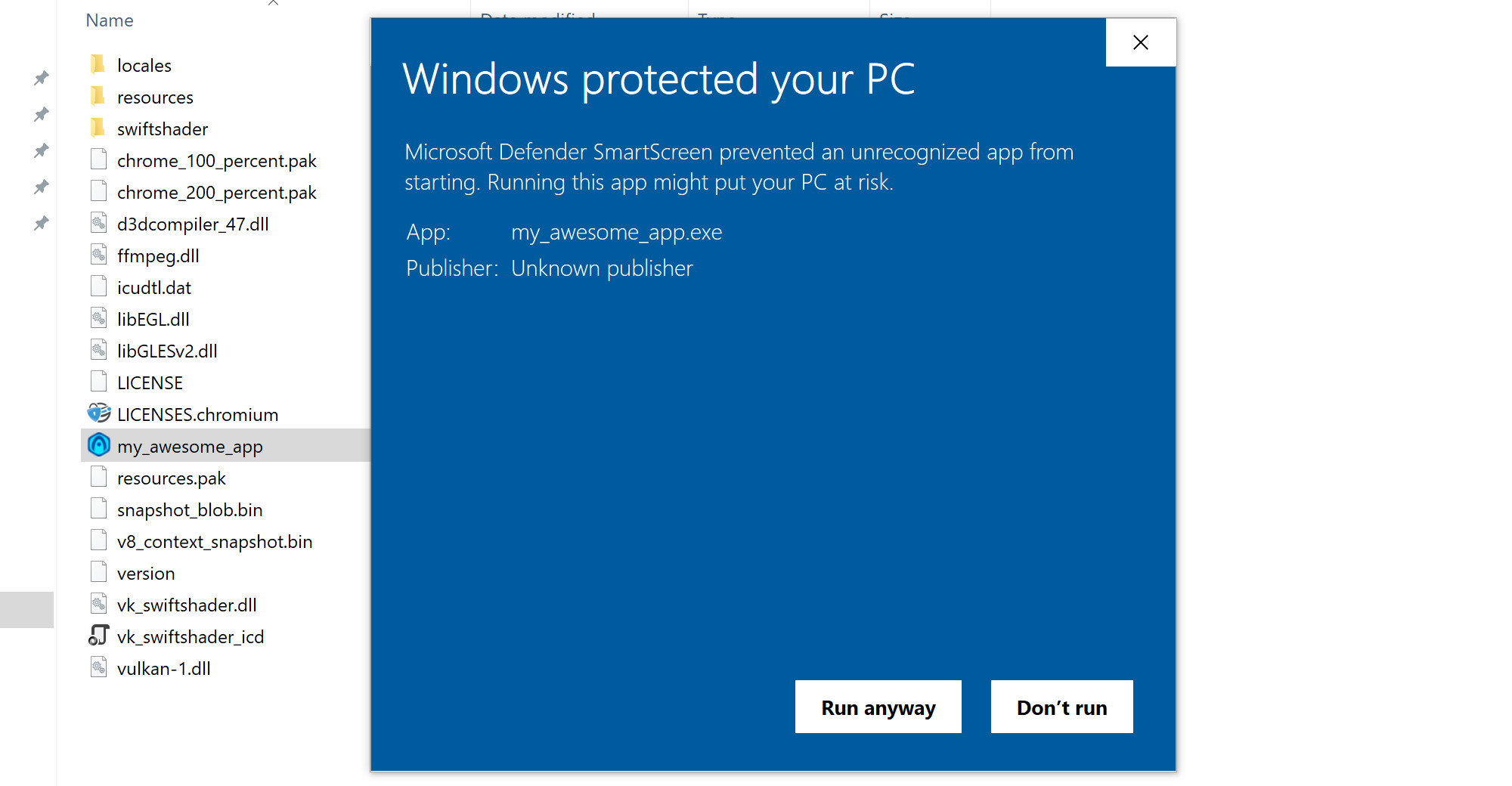
If something looks suspicious (low reputation or flagged), you'll see warnings like:
- "Windows protected your PC" (blocks running the app).

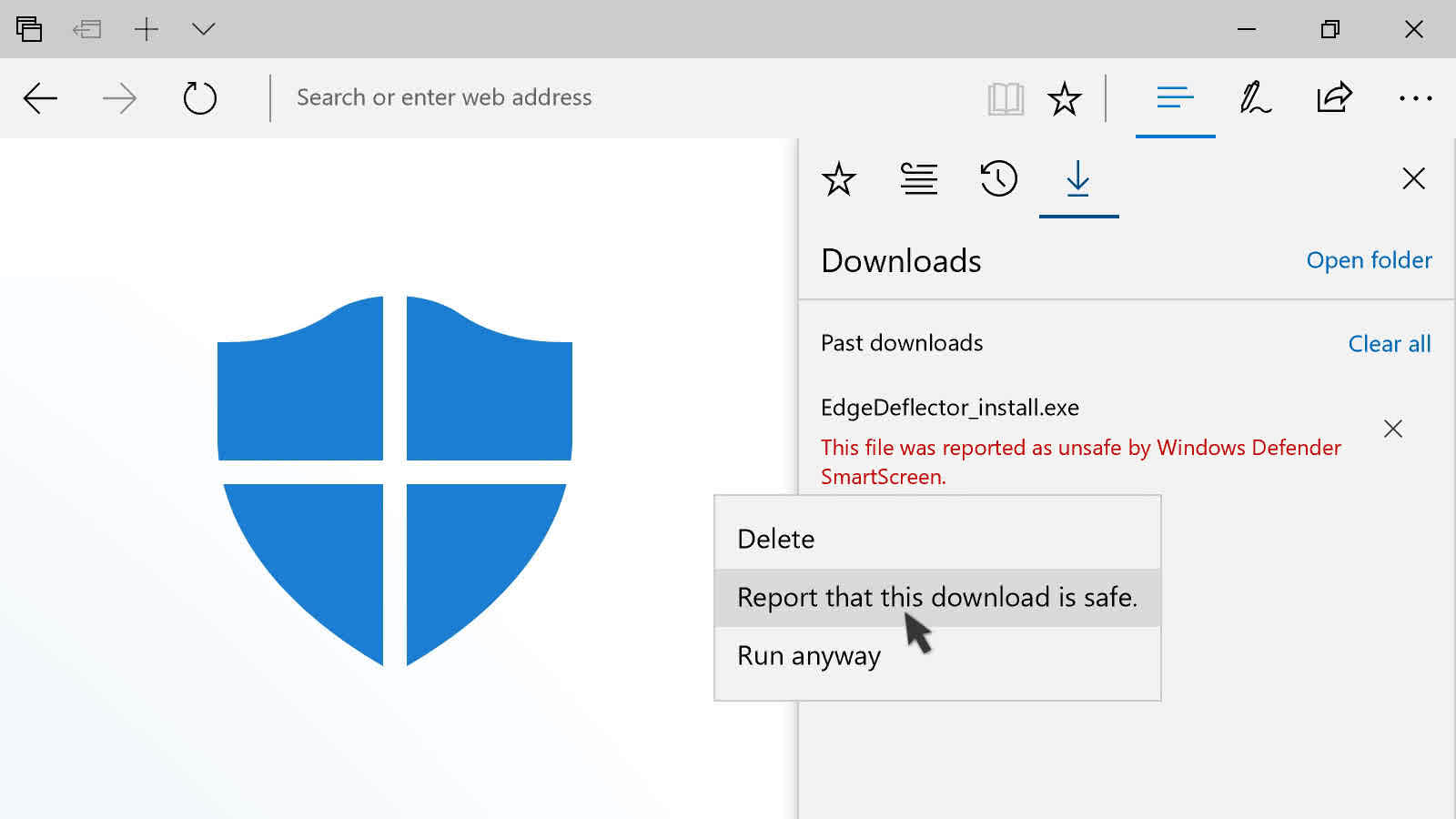
- Red screens for phishing sites in Edge.
- Options to "Run anyway" or report false positives.
Key Features and Protections
- App & File Protection: Blocks unrecognized downloads; common in phishing emails.
- Web Protection: Warns about malicious/phishing sites (especially in Edge).
- Drive-By Download Defense: Stops automatic malware installs from compromised sites.
- Integration with Defender: Part of Microsoft Defender Antivirus for layered security.
How to Manage SmartScreen Settings
Go to Windows Security > App & browser control > Reputation-based protection settings:
- Turn on/off checks for apps/files, Microsoft Edge, or Microsoft Store apps.
- Options: Warn (default) or Block.
Pro Tip: Keep it enabled! Disabling reduces protection significantly. For developers/false positives, submit files via Microsoft's reporting tool.
Why It Matters
SmartScreen has blocked billions of threats since launch. It's especially useful against zero-days and social engineering (e.g., fake updates). Combined with MotW and Protected View in Office, it's a core part of Windows defense-in-depth.
Comments
Post a Comment